
Menu
- Discover Discover
- Products Products
- Support Support
Get the software
 bOS Apps
 Learn
 Video tutorials
  Knowledge base
  Documentation
  Examples library
  FAQ
FAQ Get help
 Forum
Forum - AI Support Agent
 Help Desk
 Servers
 Panels
 Licenses
 Accessories
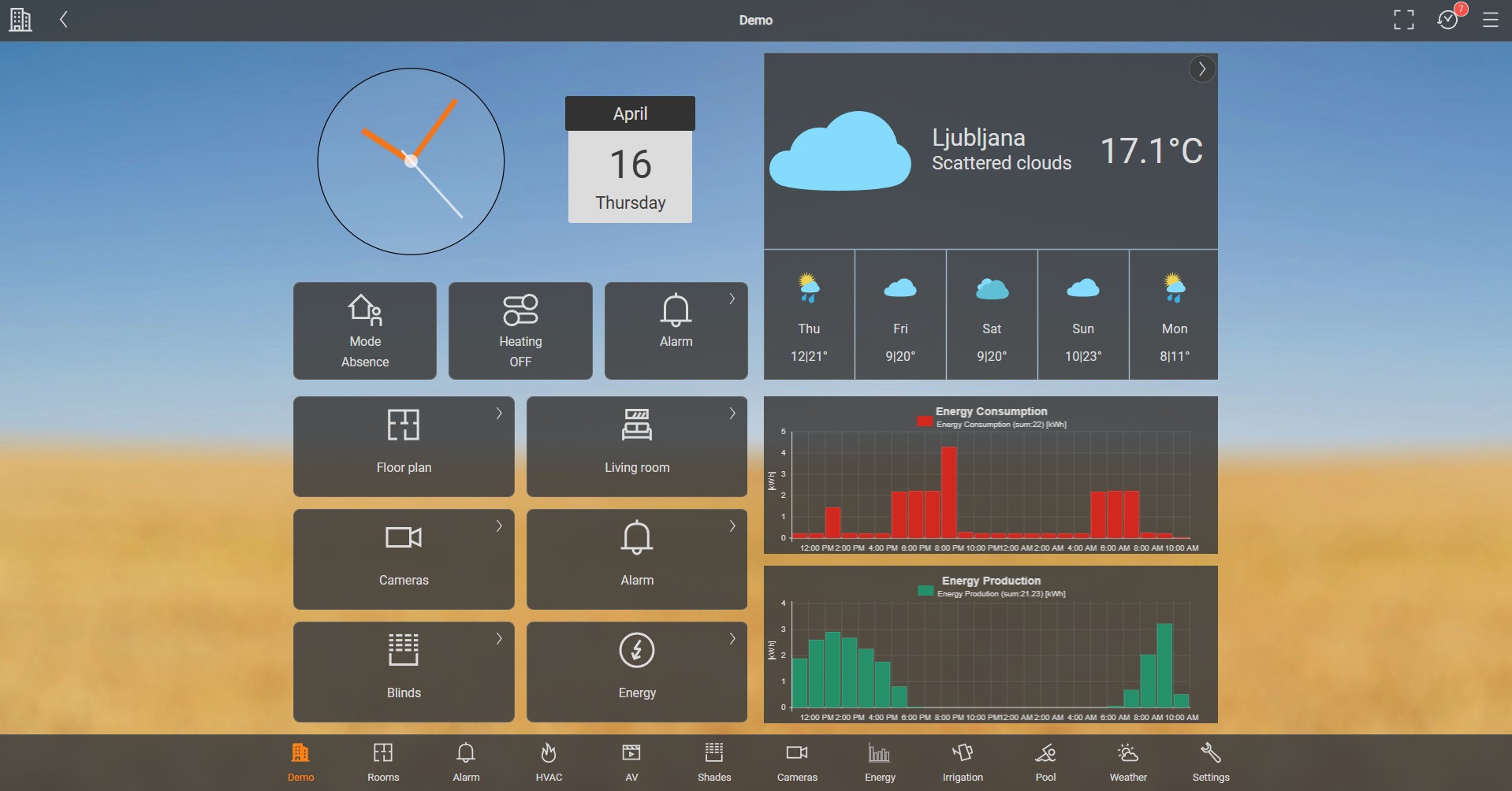
The ComfortClick Demo features our newly redesigned demo user interface (UI), offering a modern, dark-themed dashboard for visualizing complex smart home data. At its core, this configuration highlights comprehensive energy management, providing users with a centralized overview to monitor real-time generation, track historical trends, and manage high-consumption appliances.
Key components visible on the dashboard include:
Real Time Monitoring: Instantly displays current power consumption, active solar production, net power usage, and the primary active energy source.
Consumption & Production History: Tracks energy data across daily and monthly intervals, featuring detailed bar charts for visualizing usage and generation trends over time.
Battery Storage: Monitors the real-time state of charge across multiple individual battery units (supporting multiple battery banks).
Car Charging: Provides a dedicated section for EV management, tracking charging status, vehicle battery level, live charging power, and historical charging logs.
Active Appliances: Displays the live power draw (in Watts) of specific heavy loads, such as heat pumps, washing machines, ovens, and boilers, allowing for easy identification of energy sinks.
Financial & Cost Tracking: Translates energy usage into actual financial costs, summarizing daily and monthly expenditures alongside the current price per kWh, complete with a detailed time-based cost history chart.
Comparative Analytics: Features a direct visual comparison chart of Production vs Consumption, allowing users to easily spot trends, overlapping periods of generation and usage, and exact moments of grid reliance or solar surplus.
Example Preparation
A full configuration restore automatically applies all panels, images, and settings. However, if you choose to import only the panels into an existing project, you will need to manually adjust your Theme Colors (e.g., Side Menu Color, Forms Color) to match those used in the Demo configuration.
Download the example from our website and import it into your configuration. Step by step instructions on how to import are available in our instructional video.